Creating Documents, Spreadsheets and Images
Throughout this section, example prompts can be copied and pasted into your chat with Kaiya:
Hover over the copy icon on the right of the box and click 👉
Creating Word Documents
Kaiya can create a Microsoft Word document for you on demand. When Kaiya creates a document, the app delivers it in the chat as an attachment.
Kaiya has access to one or more Word templates. Your company may have bespoke templates for documents like candidate profiles, CVs and shortlists. If a suitable template exists, Kaiya will use it and pick up your branding automatically. Otherwise Kaiya will use a default template. You can ask Kaiya for the templates that are available.
Each template supports a standard set of elements:
- A header
- Heading levels 1-6
- Normal, italic, bold and bold italic text
- Indented text
- Page breaks
- Bullet points and numbered lists
- Tables (with italic / bold / bold italic cell styles)
- A footer
If you want to see how the elements render in your current template, just ask:
Can you give me a Word document with all heading levels, regular text, a list of bullet points and a table?
There are still a few things Kaiya cannot do in Word:
- Change the header or footer
- Change table styles or column sizes
- Insert charts or graphics inside the document
- Change fonts, sizes or justification
Kaiya cannot change the templates themselves. If you would like a new or updated template, get in touch with the Kaiya team at hello@kaiya.ai.
Example prompt: A simple Word document
Give me a short Word document summarising the key takeaways from our conversation, with headings and bullet points.
Example prompt: A preformatted document
For preformatted documents like candidate profiles, shortlists, assignment briefs and so on, see Producing Candidate Profiles.
Creating Excel Spreadsheets
Kaiya can produce simple Excel spreadsheets. As with Word documents, the app delivers the spreadsheet in the chat as an attachment.
Can you give me a spreadsheet showing a summary, HQ location, CEO and specialisation of the top PE firms in the UK?
Kaiya can include formulas. You may need to click each cell containing a formula and press Enter to activate it, and sometimes cell formats need a small adjustment.
Give me a spreadsheet of GDP for the UK and the other top ten economies in Europe, the size of the defence sector in each (in Euros), defence spending in each (in Euros) and a formula that calculates defence sector size as a percentage of GDP.
Kaiya can struggle with a long list of tasks in a single turn, for example:
Find the LinkedIn profile, CEO, CFO and most senior HR exec for each of the FTSE 100 and give me that as a spreadsheet.
Break this into smaller chunks:
Start with the FTSE 100, then the CEO for the first 10.
Kaiya can then work through the list while you do something else.
Providing Kaiya with attachments
You can send Kaiya most common file types:
- Microsoft Office: Word (docx), Excel (xlsx), PowerPoint (pptx)
- Plain text: txt, csv, md (markdown)
- Images: png, jpg, gif, webp
- Audio and video: most common formats, up to around four hours. Video is processed as audio only.
For office documents, PDFs and plain text files, Kaiya is limited to 50 MB or about 40,000 characters per file. Kaiya can also use PDFs on a website
When you send Kaiya an office document or PDF, Kaiya extracts the raw unformatted text. Kaiya does not see embedded images, layout or formatting. If layout matters, send a screenshot.
When you send a spreadsheet, Kaiya sees the values, not the formulas.
Some PDFs look like text but are in fact scanned images. If Kaiya cannot read a PDF, take a screenshot of the content and send that instead.
See Using Voice Notes and Recordings for more on audio and video uploads.
Creating or editing images
Kaiya can create professional images or edit an existing one based on your instructions. Describe your image as you would brief a graphic designer - clear, specific and detailed.
Avoid long passages of text in an image. Image generation struggles to render complex text accurately.
Great for:
- Custom images instead of generic stock photos
- Adjusting an existing image (removing objects, changing backgrounds or styles)
- Impactful infographics and diagrams
Image generation uses more credits than most other tools. Kaiya will usually confirm what you want before producing one.
If you have a company look and feel eg colours and fonts you would like Kaiya to use, paste images of your reference website, document or images and ask Kaiya to create and remember the design characteristics, including style, fonts, colours.
Recommended prompt structure
Use the following structure to get the best results:
- State whether to create a new image or edit an existing image.
- Describe the artistic style (e.g. minimalist, photorealistic, Pixar-style).
- Provide detailed content and purpose (scene, objects, actions).
- Specify the format and quality (square, landscape, portrait; low, medium or high quality).
- Indicate any colours or branding.
- Specify whether the background should be transparent, a specific colour or a specific style.
Example artistic styles
- Minimalist: simple, clean, modern
- Photorealistic: highly detailed, photography-like
- Pixar-style: friendly, vibrant 3D cartoon
- Flat infographic: professional, diagram-style
Avoid:
- Requests likely to infringe copyright
- Vague descriptions - be specific
Example prompts and results
Prompt: an interview scene for your website
You:
Produce an ultra-photorealistic image of a senior executive candidate in an interview. Modern glass office background, city skyline view. The candidate is a woman, mid-40s, wearing a charcoal business suit, confident smile, sitting at a glass desk with tablet and notepad. Natural daylight illumination, depth of field effect, Canon EOS R5 quality. High quality, portrait.

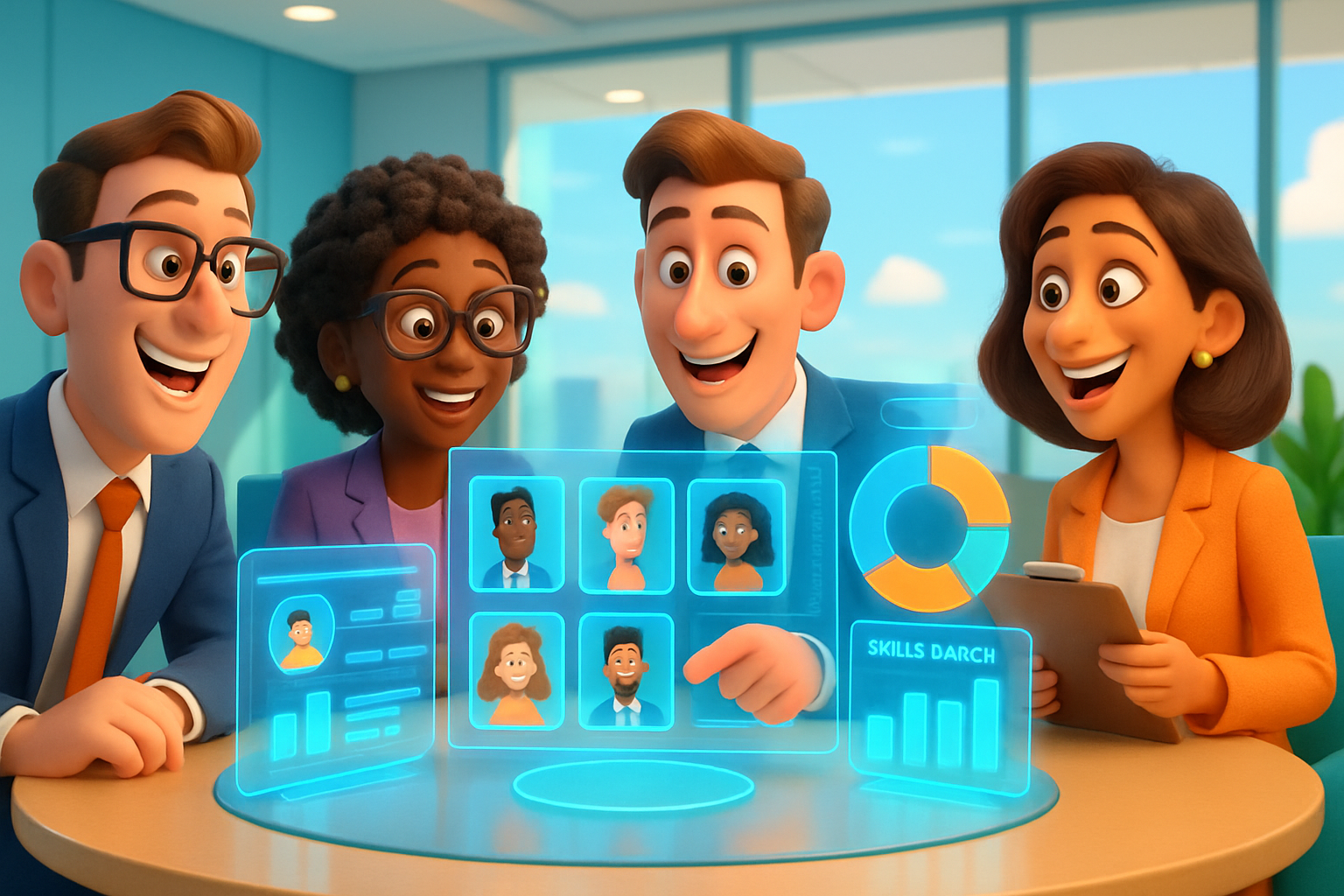
Prompt: a Pixar-style team scene
You:
Generate a Pixar-style 3D rendering of an executive search team analysing a candidate pool. Large round table with holographic displays projecting candidate profiles, diversity charts and skills match graphs. Bright corporate colour palette, smiling characters, clean futuristic office space, slight comedic tone. Medium quality, landscape.
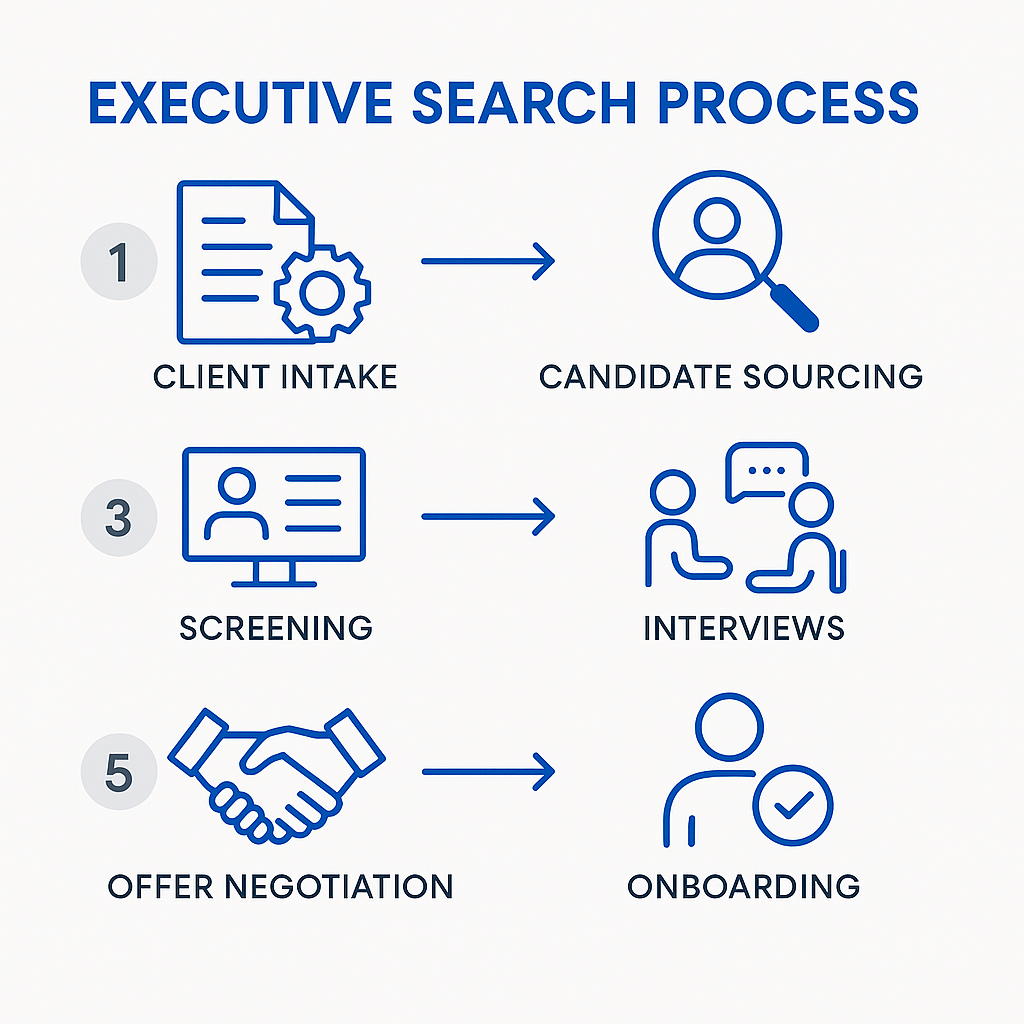
Prompt: an infographic of the executive search process
You:
Produce a clean flat-design infographic illustrating the executive search process: 1) client intake, 2) candidate sourcing, 3) screening, 4) interviews, 5) offer negotiation, 6) onboarding. Use Kaiya.ai brand colours (royal blue, light grey, white). Include simple icons for each stage, thin sans-serif fonts, highly professional aesthetic. High quality, square.
Prompt: an org chart with a transparent background
You:
Produce a modern corporate org chart in isometric 3D style. CEO at top, branching to COO, CFO, CTO, CMO. Each role represented by a small realistic business avatar, labelled with role title and colour-coded department blocks. Transparent background, minimal strong complementary colours that work on both light and dark backgrounds, minimal shadowing, professional flat design style.

Editing an image
To edit an image Kaiya has just generated, or an image you uploaded most recently, just ask for the change:
Take that last image and change the background to a light blue gradient.
Kaiya can only edit the most recent generated image or the most recent image you attached.